
How do I share one YouTube video with YouTube Kids?
Share one YouTube video from the mobile YouTube app with the linked parent account. Open the video, tap Share below the player or More beside it, tap With kids, tap Share next to the intended child, and tap Done. Google says the With kids choice appears only when the account is linked to a YouTube Kids profile or supervised Google Account.
The shared video appears under the Shared tab on the child’s YouTube Kids home screen. Google says it remains there until an adult unshares or blocks it. Sharing can also make an eligible video available even when it was not normally included in the YouTube Kids catalog, so the parent’s review is doing real work rather than bookmarking an existing kids-app result.
Use the child’s device for the last check. Open YouTube Kids, select the right profile, enter the Shared area, and play the first few seconds. That confirms the account link, the destination profile, and the item itself in one pass.
- Mobile YouTube app
- Linked parent account
- Share or More
- With kids
- Correct child profile
- Shared shelf verified
Should I share one video, a channel, or an approved library?
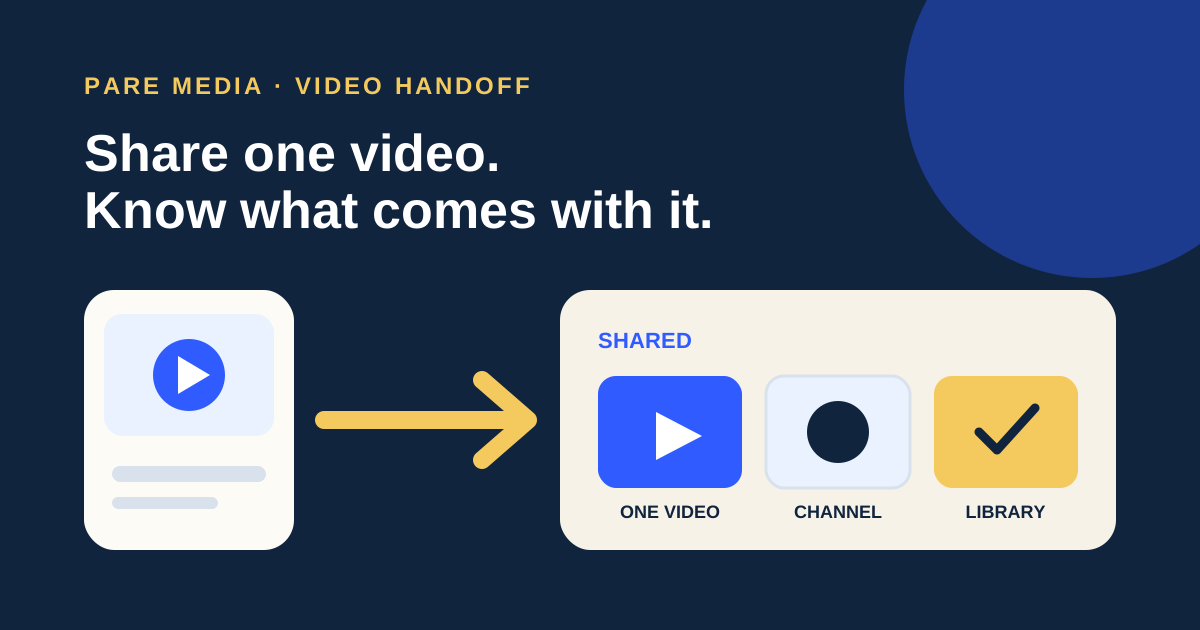
Share one video when your decision applies to one upload, share a channel when you accept that creator’s current and future eligible uploads, and use Approved Content Only when you want the child’s wider catalog built from adult choices. The three routes carry different review commitments even though they can put the same first video on screen.
Google’s YouTube for Families documentation says Approved Content Only limits the child to videos, channels, and collections a parent has handpicked. Regular sharing adds the selected item to Shared without making the rest of the YouTube Kids catalog disappear. Parents who want a closed library must change the content setting rather than assuming the Shared shelf is a whitelist.
| Route | What the parent selects | Future scope | Best fit |
|---|---|---|---|
| Share one video | One exact upload | That item stays shared until removed or blocked | You reviewed one episode |
| Share a channel | One creator’s channel | Eligible channel content can remain available | You reviewed the creator’s broader pattern |
| Approved Content Only | Chosen videos, channels, and collections | The child stays inside the handpicked set | You want a parent-built library |
What videos cannot be shared to YouTube Kids?
YouTube blocks six categories from the sharing feature: age-restricted videos, videos with branded content, live videos while they are live, purchased content, content already blocked for that child, and Shorts. A finished livestream may become shareable after the live session ends. These are platform eligibility rules, separate from a parent’s judgment about the video.
Count the six checks before troubleshooting the account. A 40-minute recorded science stream may fail at 2:00 p.m. while it is live and become eligible at 3:15 p.m. after processing. A 45-second vertical Short can remain ineligible even when its lesson is mild. The length or educational purpose does not override the format rule.
If a video is eligible but unfamiliar, use the channel evaluation process before expanding the choice to its creator. Sharing one exact item lets you keep today’s yes separate from tomorrow’s uploads.
Why is With kids missing from the Share menu?
With kids is usually missing because the adult is on the wrong account, the profile link is absent, the birthday is unverified, the device is unsupported, or the item is in an excluded category. Google limits the sending action to the mobile YouTube app. A desktop browser can remove a previously shared item in YouTube Kids, but it is not the documented route for sending one.
Start with four labels on the phone: app name, signed-in email, child profile, and content format. Then confirm the adult Google Account is the one linked to the child’s YouTube Kids profile and has a verified age over 18. Reinstalling the app should come after those checks, not before them.
For a household example, imagine two child profiles, Maya and Leo. The parent taps Share beside Maya only. Seeing the video on Maya’s Shared shelf and not Leo’s is the expected result. If neither profile appears in the With kids panel, the problem is the account link rather than the video destination.
How do I remove a video I shared?
Remove one shared video from YouTube Kids by opening Your stuff, choosing Shared, tapping More beside the video, and selecting Remove from shared. From the parent’s YouTube app, return to the same video, choose Share or More, choose With kids, then tap Unshare beside the child and finish with Done.
YouTube Kids also has a Clear shared content control under Settings and the child profile. That clears the whole Shared shelf, so use it only when the goal is to remove every shared item. Removing one item is the safer choice when the other selections still fit.
A short family log can prevent accidental overreach: title, child, date shared, and review date. If five videos were shared and one is removed, four remain. That plain count is easier to verify than relying on memory after several caregivers have added choices.
Does sharing a video approve the whole channel?
Sharing a video does not approve the whole channel. The chosen upload appears for the child, while channel sharing is a separate action with a broader scope. Google’s help page describes both videos and channels as shareable, which is why the object named in the Share panel deserves a second look before Done.
The single-video versus whole-channel guide helps when one episode fits but the catalog varies. Check recent uploads, commercial pressure, guests, and topics before turning an item-level decision into a creator-level one.
PARE uses a different request-and-decision flow. A child requests content and the parent reviews it before approval; the PARE video approval guide explains that path. Use the workflow that matches the app on the child’s device, because a YouTube Kids share and a PARE approval do not update each other.
How do I verify the handoff before giving back the device?
Verify the handoff by opening the child’s actual profile and finding the item under Shared. Check the thumbnail, title, channel, and first moments of playback. Then inspect what appears at the end, because sharing one video does not state that every recommendation beside or after it has been reviewed.
YouTube says its Kids catalog uses algorithmic filtering, user input, and human review, and adds that “no algorithm is perfect.” Shared content gives the adult a more direct route to one choice, but it does not remove the need to check the surrounding settings. Turn off autoplay if one video is the plan.
Tell the child what was shared and what was not: “I added this dinosaur video to your Shared row. I did not add the whole channel.” That sentence gives the interface a boundary the child can understand and makes the next request more specific.
Common questions
Can I share a YouTube video to YouTube Kids from a computer?
Google documents sharing as a mobile YouTube app feature. A computer can be used to view or remove content already on the child’s Shared shelf.
Where does a shared video appear in YouTube Kids?
It appears in the Shared tab on the child’s YouTube Kids home screen and remains there until it is unshared or blocked.
Can I share a YouTube Short with YouTube Kids?
No. YouTube lists Shorts among the six types that cannot be shared through the With kids feature.
Can I share the same video with two children?
Yes. In the With kids panel, choose Share beside each intended child profile, then verify the Shared shelf for each child.
Sources and further reading
- Block and share content on YouTube Kids, YouTube for Families Help
Primary instructions for sharing, unsharing, eligible accounts, mobile-only availability, and excluded content types; checked October 7, 2026.
- What videos are available in YouTube Kids, YouTube for Families Help
Primary explanation of the YouTube Kids catalog, Approved Content Only, and the limits of automated filtering; checked October 7, 2026.