
How do I disable autoplay for a YouTube Kids profile?
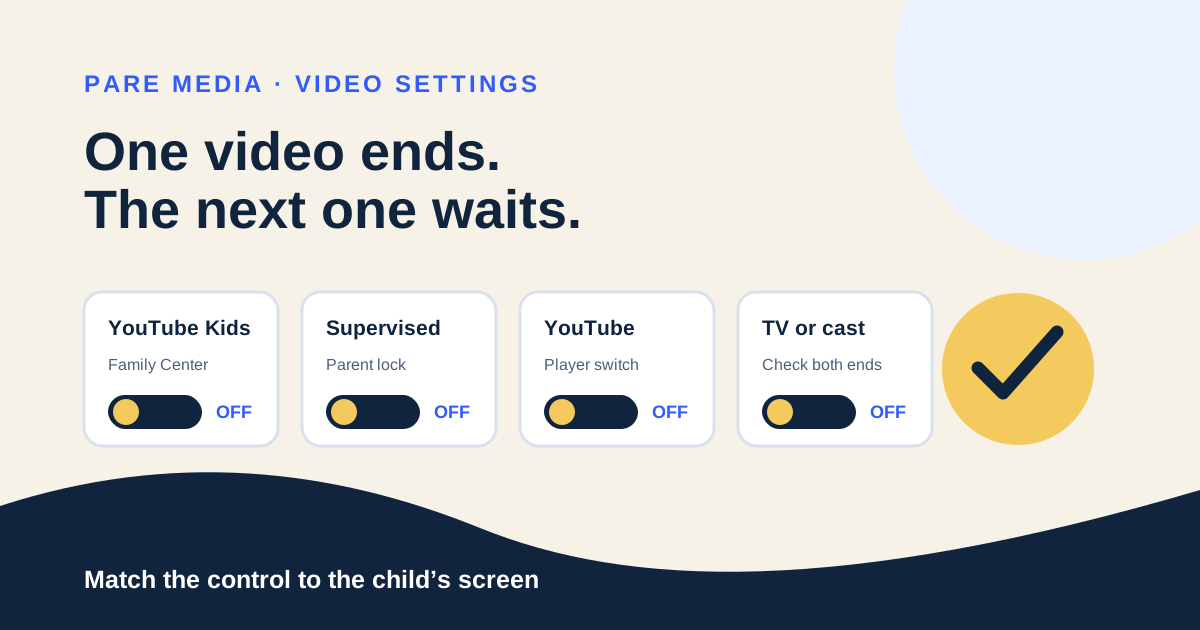
Disable autoplay for a YouTube Kids profile from the linked parent account when you want the setting to stay beyond one viewing session. In the YouTube app, sign in with the linked parent account, tap You or the profile picture, open Settings, choose Family Center, select the child’s profile or account, and turn on Disable autoplay. On a computer, the route is profile picture, Settings, Family Center, then Manage kids profiles and features for teens before selecting the child.
Google’s YouTube for Families Help says that when Disable autoplay is on, the child “can’t turn on Autoplay.” That sentence distinguishes the parent control from the ordinary player switch. The YouTube Kids player switch still helps during a shared session: open a video’s watch page, open the menu when needed, and set Autoplay to Off. A child can normally change that player setting unless the linked parent has disabled autoplay in Family Center.
If the app names a YouTube Kids profile under the adult’s Google Account instead of a child Google Account, open Parent settings in YouTube Kids or manage the profile through the linked parent account’s Family Center. Google currently lists three management locations for a Kids profile: the child’s profile, Parent settings in YouTube Kids, and Family Center. The labels can move, but the profile you select should match the child who watches.
How do I turn off autoplay for a supervised YouTube account?
Turn off autoplay for a supervised YouTube account through the linked parent’s Family Center. Open YouTube while signed in as the parent, go to Settings, choose Family Center, select the child’s supervised account, and switch Disable autoplay on. This is the useful route when the child watches the main YouTube experience under supervision rather than the separate YouTube Kids app.
Do not rely on the age default alone. YouTube Help says autoplay is off by default for users ages 13 through 17, yet those users can turn it on unless a parent or guardian has disabled it for a supervised account. The visible state on the child’s watch screen is the final check. Open one ordinary video under the supervised account, let it reach the end, and confirm the player does not start the suggested next video.
Autoplay controls the next item. A continuous Shorts feed uses a separate daily control described in the YouTube Shorts limit guide. One chosen video gives little evidence about the creator’s full catalog; the channel evaluation guide gives a three-video review when recommendations keep pointing to the same publisher.
How do I switch off autoplay on ordinary YouTube?
Switch off autoplay on ordinary YouTube from the player or the app’s Autoplay setting, then repeat the choice on each device the child uses. On iPhone or Android, open a video and set the Autoplay switch at the top of the player to Off. YouTube Help also documents profile picture, Settings, Autoplay as an app-level route. On a computer, use the Autoplay switch at the bottom of the video player.
Ordinary YouTube remembers autoplay separately across some devices. Google gives a direct example: autoplay can be on in the mobile app and off on a computer. That explains many reports that YouTube Kids autoplay keeps turning on when the family has actually changed an ordinary YouTube switch on one screen, changed the wrong profile, or moved playback to another device.
Use a two-minute handoff test. Write down the account name and device, open one short video, confirm the switch reads Off, and wait through the final screen. If the next item starts anyway, check whether the account changed, whether playback moved into a cast queue, and whether the child is in YouTube Kids, supervised YouTube, or an ordinary adult account. Those are separate setups even when the television shows the same red YouTube mark.
Where is the YouTube autoplay setting on a TV?
The YouTube TV app places its ordinary autoplay control under Settings > Autoplay, where you can choose Off. For YouTube Kids or supervised viewing, first apply the parent-side Disable autoplay control, then select the same child profile on the television. A setting tied to Ava’s profile does not govern Guest, an adult account, or a signed-out session.
Casting adds another controller. YouTube Help directs the viewer to connect the phone or tablet, expand the queue from the control bar at the bottom of the mobile screen, and use the queue’s Autoplay switch. Check both ends of the session: the profile visible on the TV and the queue visible on the phone. If a family member reconnects with another account, repeat the check rather than assuming the TV kept the first person’s preference.
The Made for Kids versus YouTube Kids guide helps when the label on a video is being confused with the app or profile. “Made for Kids” describes the video’s intended audience under YouTube’s system. It does not mean the television has entered the separate YouTube Kids experience or inherited a child profile’s settings.
Why does autoplay appear to turn itself back on?
Autoplay usually appears to return because the family changed a local switch instead of the parent-enforced control, moved to another device, selected another profile, or started a casting queue. Check those four conditions in that order. They are faster to verify than repeatedly toggling the same switch and hoping it will govern every YouTube surface.
Use a small test record when the problem repeats: child profile, viewing app, playback device, controller device, and observed result. For example, “Mia, YouTube Kids, living-room TV, no phone casting, stopped after one video” identifies five facts. If playback continues the next day, compare the new session with that record. A different account or casting phone becomes visible instead of looking like a mysterious reset.
Turning off autoplay limits one source of momentum. Recommendations, search, playlists, and manual taps still offer another video. If the family wants one reviewed item and a clean stop, place the remote or controller back with the adult when the video ends and say what comes next before playback begins.
Common questions
Can my child turn autoplay back on in YouTube Kids?
A child can normally change the player switch. When the linked parent turns on Disable autoplay in Family Center, Google says the child cannot turn autoplay back on.
Does turning off autoplay on my phone also turn it off on the TV?
Do not assume it does. Ordinary YouTube can keep different autoplay states on different devices, and a casting queue has its own switch. Check the TV profile and the device controlling playback.
Why is autoplay still on for a supervised YouTube account?
Confirm the child is using the supervised account you selected in Family Center, then check the watch-screen switch. Another profile, a signed-out session, or another device can show a different state.
Does autoplay off remove recommendations?
No. It stops the next related video from starting automatically. Recommendations, search results, playlists, and manually selected videos can still appear.
Sources and further reading
- Manage YouTube Kids settings for your kid’s Google Account, YouTube for Families Help
Primary instructions for Family Center, the parent-enforced Disable autoplay control, and the YouTube Kids player switch; checked October 8, 2026.
- Parental controls for YouTube Kids profiles, YouTube for Families Help
Primary paths for managing a child profile from a linked parent account and Family Link; checked October 8, 2026.
- Autoplay videos, YouTube Help
Primary instructions for mobile, computer, smart TV, supervised-account defaults, and casting queues; checked October 8, 2026.