
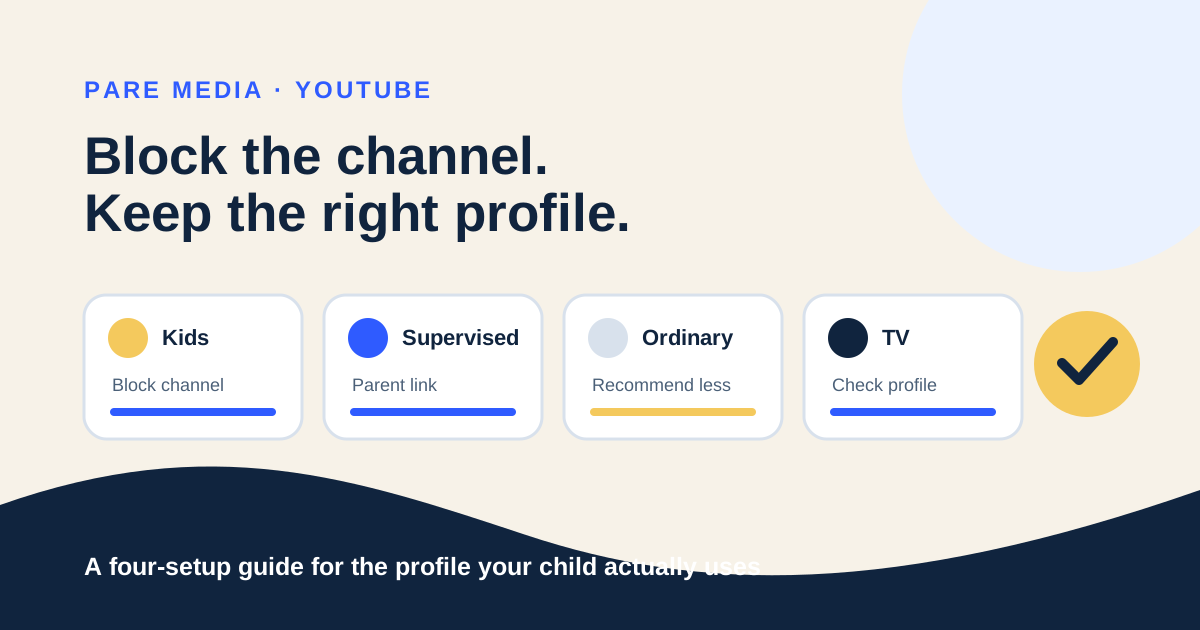
Which YouTube channel control matches my child’s setup?
The correct YouTube channel control depends on the account and viewing surface in front of the child. YouTube Kids and supervised kid accounts can use a profile-level channel block. Ordinary YouTube offers recommendation feedback instead, while a television inherits the controls of the profile selected on that screen.
Google’s YouTube for Families help says a blocked channel disappears from the child’s YouTube Kids profile. It also warns that the block covers uploads from that specific channel, not copies uploaded elsewhere or similar channels. That boundary matters when several channels publish the same cartoon, song, or compilation.
| Viewing setup | Best available action | What it changes | What to verify |
|---|---|---|---|
| YouTube Kids | Block entire channel | Hides that channel from the signed-in child profile | The correct child profile is active |
| Supervised kid account | Block channel for kids from the linked parent account | Blocks that channel for the selected child | The parent and child accounts are linked |
| Ordinary signed-in YouTube | Don’t recommend channel | Tunes Home and Watch Next recommendations | Search and direct links can still reach the channel |
| YouTube on a TV | Select the child profile that already carries the block | Applies the selected profile’s controls | The TV did not open an adult or guest profile |
How do I block a channel from the linked parent account?
To block a channel for a supervised child, use the linked parent account in YouTube and apply the choice to that child. In the mobile YouTube app, open the channel page, tap More, tap Block channel for kids, continue past the notice about similar videos, tap Block beside the child, and tap Done. Google lists seven actions from opening the channel through tapping Done.
On a computer, open the channel page and choose its About tab. Select Report user, then Block channel for kids, Continue, Block beside the child, and Done. The wording can look surprising because the child control sits under the report-user icon on desktop, but blocking does not require claiming that the channel violated a policy.
If Block channel for kids is missing, first check the account shown in the profile menu. Google says the option appears only for the linked parent account. Also confirm that the adult’s birthday is verified as over 18. Switching from an unlinked adult profile to the linked parent profile is often the missing step.
- Open the channel rather than one isolated video
- Confirm the linked parent account is active
- Choose Block channel for kids
- Select the intended child
- Return on the child profile and test the result
How do I block a whole channel inside YouTube Kids?
Inside YouTube Kids, block a whole channel from a video’s watch page. Sign in, open one of the channel’s videos, tap More at the top, tap Block, choose Block entire channel, confirm Block, and complete the numbers or custom passcode. The Home screen’s More menu blocks only the individual video, so open the watch page when the whole channel is the target.
The choice belongs to the signed-in profile. Google notes that content blocked while signed in becomes available if YouTube Kids is later used while signed out. A quick test should therefore include the avatar in the corner, the channel name, and a search for one known title from that channel.
Blocking can be the narrow response after a parent has reviewed a recurring pattern. If you have only seen one questionable upload, the ten-minute channel evaluation gives you a three-video sample before you decide whether the concern belongs to one video or the catalog.
Does Don’t recommend channel block a YouTube channel?
Don’t recommend channel does not block access to a YouTube channel. YouTube Help describes the action as a signal used to tune recommendations on surfaces such as Home and Watch Next. A viewer may still find the channel through search, a direct link, a playlist, or a different account.
That makes the action useful for cleaning up an adult’s suggestions but too weak as a child-account boundary. The label sounds stronger than its effect. YouTube’s own explanation says recommendation feedback “may be used to tune your recommendations,” language that describes influence rather than a guaranteed exclusion.
If the family likes one upload but not the creator’s wider catalog, a single-video choice is easier to explain and revisit. The guide on approving one video or a whole channel separates approval of the item you watched from approval of future uploads you have not seen.
Will the channel stay blocked on a smart TV?
A blocked channel stays tied to the child profile, so the television must use that same signed-in profile. Google says the same YouTube Kids profile is ready on another smart TV, streaming device, or game console when the adult signs in with the account used to create it. On the TV’s Who’s Watching screen, choose the child profile before playback.
Here is a concrete profile test. Suppose a living-room TV shows four choices: Mom, Dad, Ava, and Guest. The channel is blocked for Ava. One search from Ava’s profile and one from Guest are two different tests; a clean result under Ava says nothing about Guest. Add a parent code on the TV if the child can switch out of YouTube Kids without adult help.
If a child asks why a familiar creator vanished, name the channel and the reason in plain terms. The guide for a child who disagrees with a video review can help turn that moment into a specific conversation instead of a vague argument about YouTube.
How do I check that the channel block worked?
Check the channel block from the exact child profile and device used for viewing. Search for the channel name, try one previously watched title, inspect Watch Again, and restart the app. On a TV, confirm the profile after the restart because account switching can undo an otherwise correct test.
Use a small record if several caregivers manage the setup: child profile, channel name, date blocked, and one device tested. Four fields are enough. They show whether a later appearance came from a re-upload, another profile, or a control that was never applied to this child.
A channel block is reversible, but Google’s current YouTube Kids control for unblocking inside the app removes all blocked videos at once. Before using Unblock videos, review the list of earlier family decisions so restoring one channel does not quietly restore twenty others.
Common questions
Can I block one YouTube channel for only one child?
Yes. From the linked parent account, choose Block channel for kids and select the specific child profile. Test the result while signed in as that child.
Why can my child still see a blocked video?
The child may be signed out, using another profile, or seeing a copy uploaded by another channel. A channel block covers uploads from that specific channel.
Is Don’t recommend channel the same as blocking?
No. It supplies feedback to YouTube’s recommendation system but does not prevent search, direct links, or access from another account.
Can I block a YouTube channel from a TV remote?
TV menus can offer recommendation feedback, but the dependable child-level route is to block through the linked parent account or YouTube Kids, then select that child profile on the TV.
Sources and further reading
- Block and share content on YouTube Kids, YouTube for Families Help
Primary instructions for linked-parent and in-app channel blocking, profile behavior, and re-upload limits; checked October 7, 2026.
- Manage your recommendations and search results, YouTube Help
Primary explanation of Don’t recommend channel as recommendation feedback; checked October 7, 2026.
- Watch YouTube Kids on your TV, YouTube for Families Help
Primary instructions for selecting a signed-in YouTube Kids profile on televisions and consoles; checked October 7, 2026.