
What does a GIF maker do?
A GIF maker selects frames from a video or set of images, arranges them in order, and exports a loop in the Graphics Interchange Format. The result has no ordinary audio track. It works best when the viewer can understand one movement, reaction, or instruction without sound.
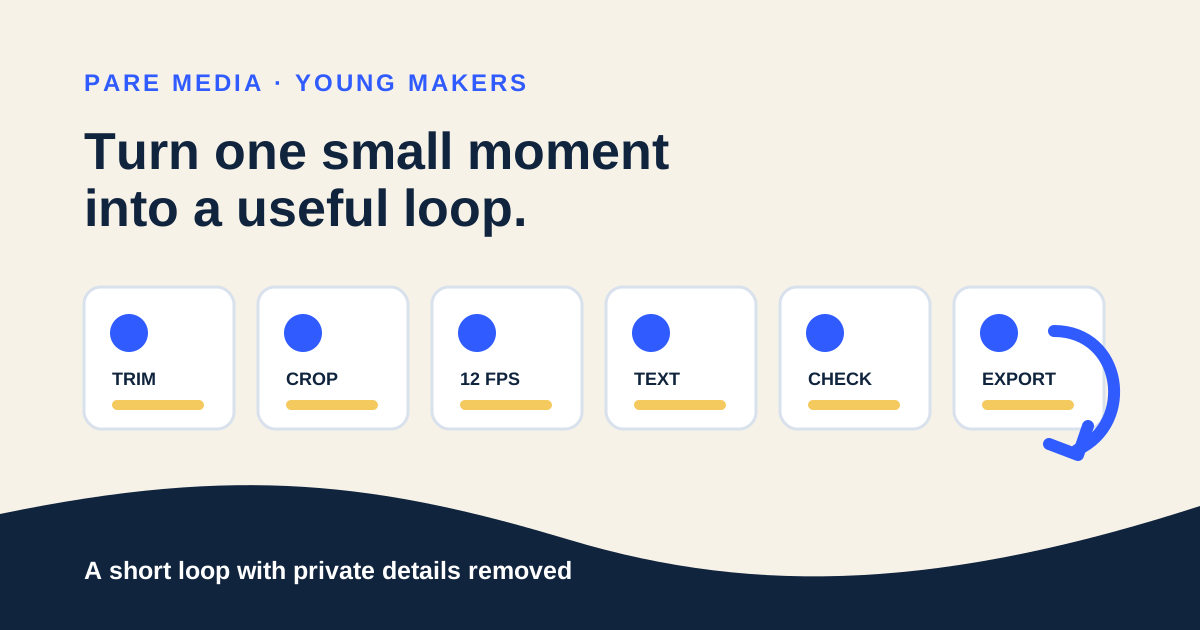
The search phrase “gif maker gif” usually points to a converter or editor rather than a special kind of file. Some tools run in a browser, some are built into a phone or messaging app, and others work locally on a computer. The buttons differ, but the useful decisions stay the same: source, trim, crop, speed, text, loop, and export.
Format limits shape the look. MDN explains that GIF uses 8-bit indexed color with a palette of up to 256 entries and calls it “a good choice for simple images and animations.” Full-color camera footage may show banding or dithering after conversion. Keep the frame small and the action simple before increasing quality settings that can make the file hard to send.
How do I choose a safe source clip?
Choose a safe source clip by watching the full frame before opening any maker. Look for faces, school logos, street signs, mail, family photos, device screens, notifications, license plates, and spoken information. A funny three-second gesture can still reveal a child’s name in the background or another person who did not agree to be shared.
Ask two permissions before using a family clip: may I turn this moment into a loop, and where may the finished file go? A yes for a private family chat does not automatically cover a public post. If a friend appears, use the friend-photo permission guide to make the audience part of the request.
Prefer a local editor when the source contains children or private spaces. A browser-based service receives the uploaded file, so read its current privacy terms and deletion controls before sending footage. If the tool’s handling is unclear, record a new clip against a plain background or use a sequence of drawings instead. The editing trick is replaceable; private footage is harder to retrieve once copied.
How do I trim and crop a video for a GIF?
Trim a video for a GIF by finding the first frame that explains the action and the first frame after the action finishes. Remove the pause before someone moves and the dead time after the reaction. A 2-to-6-second source is long enough for many gestures, craft motions, pet moments, or before-and-after demonstrations.
Crop around the subject after trimming. If a hand folds paper on the right side of a wide video, a tighter square or portrait crop makes the motion larger and removes unrelated room details. Keep enough space for the hand to finish its movement. Preview the first and last frame beside each other, because their visual jump determines whether the loop feels intentional.
Keep enough context around the action when cropping. For a six-step craft, give each step its own GIF. If the child wants to teach the whole process in one file, make a short video. The video tutorial check helps review tools and materials before a child copies or publishes an instruction.
What frame rate should I use for a GIF?
Start near 12 frames per second for ordinary movement, then lower the rate when the subject remains clear. Frame rate counts how many still frames appear during each second. More frames can make motion smoother, but they also give the encoder more image data to store. Source detail, dimensions, color changes, and the maker’s compression settings also affect file size.
Use a four-second worked example. At 8 frames per second, the loop contains 32 frames. At 12 frames per second, it contains 48. At 15 frames per second, it contains 60. Moving from 12 to 15 adds 12 frames, a 25 percent increase in frame count, before any change to dimensions or palette. That arithmetic is exact even though the final file size is tool-dependent.
Preview at the speed where the GIF will be used. A reaction can work at 8 frames per second; a small hand motion may need 12 or 15 to remain understandable. If the file is too large, shorten the duration or reduce dimensions before crushing the colors. Those changes often preserve the subject better than aggressive palette reduction.
| Frame rate | Calculation | Frames in the loop | Good first use |
|---|---|---|---|
| 6 fps | 4 seconds × 6 | 24 | Very simple motion or a sketch-like look |
| 8 fps | 4 seconds × 8 | 32 | Reaction or broad gesture |
| 12 fps | 4 seconds × 12 | 48 | Balanced starting point for ordinary motion |
| 15 fps | 4 seconds × 15 | 60 | Small or faster movement when size allows |
How should I add words without making the GIF hard to read?
Add words to a GIF only when the motion needs context, and keep the phrase short enough to read during one loop. Use high contrast, a solid or lightly opaque backing behind the letters, and a position that does not cover a face, hand, or key object. Preview at the small size used in a message thread.
Caption meaning rather than every spoken word. “Fold here” can support a paper demonstration; a full sentence may flash too quickly. If speech matters, a captioned video is usually the better format because GIF has no normal audio track and offers weak control over reading time. The child should not have to watch five loops to catch a paragraph.
Check spelling, names, and private references before export. A sticker with a school name can undo a careful crop. If the GIF is intended for a broader audience, replace personal names with a general label and remove handles or contact information. PARE’s editorial approach uses the same practical principle: give enough context to be useful without claiming or exposing more than the material supports.
How do I preview and export the finished GIF?
Preview the finished GIF for three complete loops before exporting. Watch the first-to-last transition, the readability of any words, color banding around faces or skies, and details at every edge of the crop. Then mute or close the source video and confirm the loop still makes sense without sound.
Export at the smallest dimensions that suit the destination. A chat reaction does not need the width of a full phone screen, while a step-by-step demonstration needs enough pixels to show the hand position. Keep the original video separately if it is yours, because converting to GIF reduces color information and usually discards audio. Do not repeatedly edit and re-export the GIF when you can return to the cleaner source.
Run a final four-part share check: subject permission, audience, visible private details, and file behavior after sending. Open the received copy on another device if the message matters; some services resize animation or replace it with a still preview. If a PARE family needs help with the site rather than a third-party maker, use PARE support for product questions.
- The loop communicates one action without sound
- Everyone visible agreed to the intended audience
- Names, screens, signs, and location clues are removed
- Text remains readable at message size
- The received file still animates as expected
Common questions
How long should a GIF be?
For a simple reaction or demonstration, start with 2 to 6 seconds. Trim the pause before the action and the dead time after it.
What frame rate should I choose for a GIF?
Start near 12 frames per second, then test 8 for simple motion or 15 for faster detail. Duration, dimensions, colors, and compression also affect file size.
Can a GIF include sound?
A standard GIF does not carry an ordinary audio track. Use a captioned video when speech, music, or sound effects are necessary to understand the moment.
Is an online GIF maker safe for a child’s video?
It depends on the service’s current data handling. Prefer a local editor for private family footage, or use a new clip without faces, names, screens, or location clues.
Why does my GIF look grainy or show color bands?
GIF uses a palette of up to 256 colors, so full-color video can dither or band. Shorten the clip, crop tightly, reduce dimensions, or choose a modern video format when color fidelity matters.
Sources and further reading
- Image file type and format guide, MDN Web Docs
Technical source for GIF’s 8-bit indexed color, palette limit, animation behavior, broad browser support, and format tradeoffs; checked October 8, 2026.