
What should a seven-permission phone audit include?
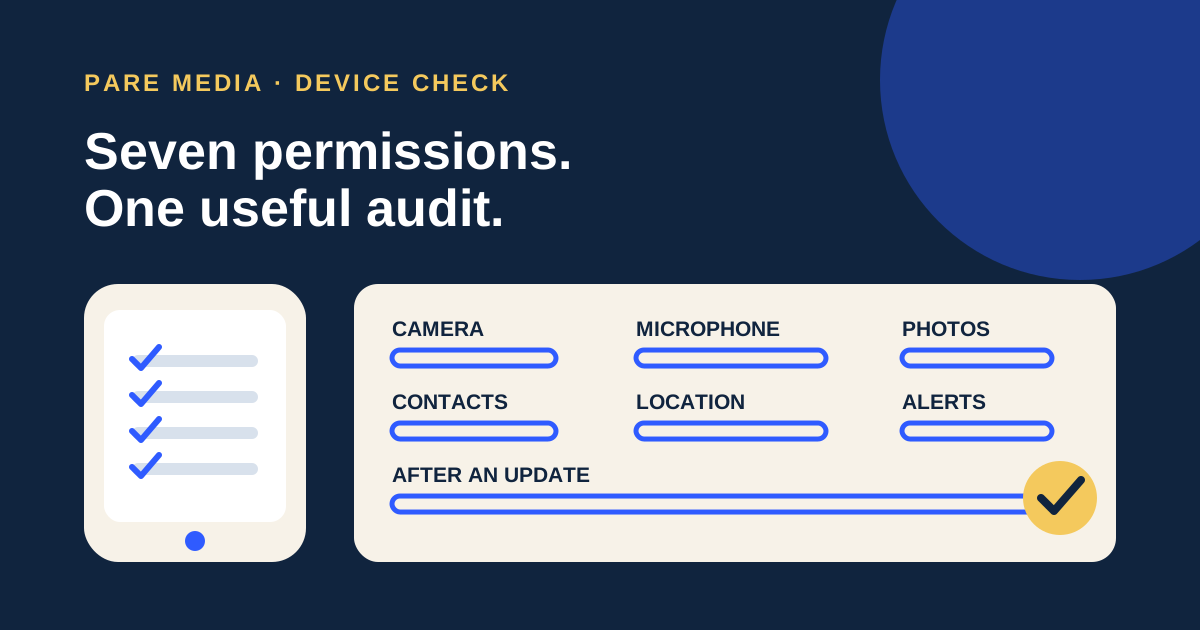
A seven-permission phone audit should name the app, the access it has now, the feature that needs that access, and the family’s decision. Camera, microphone, photos, contacts, location, notifications, and new post-update requests cover the common points where a child’s ordinary task can expand into recording, sharing, tracking, or interruption.
Print this page or use the browser’s print command. For each installed app the child actually uses, mark Allow, Narrow, Deny, or Revisit beside the seven rows below. “Narrow” means choosing a smaller supported option such as selected photos, approximate location, or access only while using the app. Leave the box blank when the app has never requested that permission.
Treat Deny as one possible answer. A calling app needs a microphone for speech, and a camera-based homework task may need the camera for one session. The useful test is proportionality: does the access match the chosen feature, audience, and duration? Apple says its Privacy & Security screen lets a user “see which apps you have allowed to access certain information.” Use that inventory as the starting point for your family’s judgment.
- Camera: app, current setting, feature, Allow / Narrow / Deny / Revisit
- Microphone: app, current setting, feature, Allow / Narrow / Deny / Revisit
- Photos and videos: app, current setting, feature, Allow / Narrow / Deny / Revisit
- Contacts: app, current setting, feature, Allow / Narrow / Deny / Revisit
- Location: app, current setting, feature, Allow / Narrow / Deny / Revisit
- Notifications: app, current setting, lock-screen choice, Allow / Narrow / Deny / Revisit
- After an update: version or date, new request, triggering action, decision
How do I review app permissions on a child’s iPhone?
Review iPhone permissions by opening Settings > Privacy & Security, then choosing a category such as Camera, Microphone, Photos, Contacts, or Location Services. The category screen lists apps that requested that access, and you can change each app’s setting there. For notifications, open Settings > Notifications and select the app to review alerts, sounds, badges, and lock-screen presentation.
Open the child’s most-used apps first. For Photos, look for a selected-items option when the app needs only a few project images. For Location Services, compare Never, Ask Next Time or When I Share, While Using the App, and any available precise-location switch. The exact choices depend on the app and iOS version, so record the choice shown on the device rather than copying a label from another phone.
Apple’s App Privacy Report can add context. Under Settings > Privacy & Security > App Privacy Report, it shows how apps use granted permissions and their network activity after the report has collected data. An access entry does not prove misuse. It gives you a timestamp and category to compare with what the child was doing. The separate guides for a camera request and a contacts request help when one row needs a closer decision.
How do I review app permissions on a child’s Android phone?
Review Android permissions either app by app or category by category. For one app, open Settings > Apps > the app > Permissions. For a category view, Google documents Settings > Security & privacy > Privacy > Permission manager, then a permission type. Manufacturer labels can vary, so use Settings search for “Permission manager” if the route looks different.
Android may offer All the time for location, Allow only while using the app, Ask every time, or Don’t allow. Camera and microphone can also have device-wide privacy controls. Google’s Privacy dashboard shows which apps accessed permissions and when; its help states that Android 13 can show the last seven days, while Android 12 shows the last 24 hours. Those named windows help a parent compare access with a recent school project, call, or photo session.
For a child supervised with Family Link, the parent can open Family Link, select the child, choose Controls > Signed-in devices > the child’s device > App permissions, then select a permission. Google also warns that setting permission approval to Only parents does not remove access already granted. Use the existing-permissions guide before treating a policy change as a completed audit.
Which permissions should a parent narrow first?
A parent should narrow permissions that expose more information or operate for longer than the child’s approved task requires. Start with always-on location, full photo-library access, the entire contacts list, and noisy lock-screen notifications. Then review camera and microphone access for apps whose core activity does not use recording.
Use the feature test before changing anything: name one task, change one permission, and try that task with harmless material. If a drawing app needs one picture for a collage, select a nonprivate sample image and see whether limited photo access works. If a language app records pronunciation, test a made-up sentence instead of the child’s name, school, or address. This keeps troubleshooting separate from private family content.
Notifications deserve their own pass because they are not simply data access. Check whether the app may alert at all, which categories are useful, whether previews appear on the lock screen, and whether sound is needed. A message can expose a friend’s name or words even when the app’s contacts permission is off. The audit should describe what another person can see when the phone is resting on a table.
How long does a permission audit take with real numbers?
A focused first audit can fit into 20 minutes when you review six active apps across seven permission rows. That creates 42 possible checks: 6 apps multiplied by 7 rows. Most cells will be blank because a calculator does not request contacts and a reading app may never request the camera. Use the number only to map the workload; each app will occupy a different set of rows.
Here is a workable pass: spend 2 minutes listing the six apps, 12 minutes checking two apps at a time, 4 minutes testing changed features, and 2 minutes writing down anything marked Revisit. If the phone has 18 installed apps, do not force all 126 possible cells into one tired sitting. Finish the six active apps, then review the rest in groups over the next week.
Keep a four-column record: app, permission, decision, reason. “Map app | Location | While using | directions” is enough. Avoid storing screenshots that contain messages, faces, contact names, or location history. The checklist is useful because it makes the next review smaller; it should not become a second privacy problem.
| Time | Action | Result |
|---|---|---|
| 2 minutes | List the six apps used most often | A bounded review set |
| 12 minutes | Check seven permission rows for two apps at a time | 42 possible cells, with unused rows left blank |
| 4 minutes | Test features affected by changes | Evidence that the approved task still works |
| 2 minutes | Record Revisit items and the next check date | A short follow-up list |
What should I do when an update asks for a new permission?
When an app update asks for a new permission, pause on the prompt and record the permission, app version, and action that triggered it. Check the provider’s current release notes or help for the feature. Then test whether the child’s existing task still works without granting the new access.
A new request can be legitimate without being necessary for your child. A drawing app may add voice narration, or a game may add friend finding. The original activity can still fit while the new feature remains off. The post-update permission guide gives a narrower process for that moment and avoids treating every update as either harmless or suspicious.
End the audit by telling the child what changed in plain language: “The collage app can use the three pictures we selected, but it cannot browse the full library.” Invite them to show you a blocked feature rather than changing settings in a hurry. That turns the next permission prompt into a shared troubleshooting step.
Common questions
How often should I audit a child’s phone permissions?
Review the most-used apps during setup, after a major phone or app update, and when a new feature asks for access. A short event-based review is more useful than a calendar reminder nobody follows.
Should every permission on a child’s phone be turned off?
No. Match access to an approved feature and choose the narrowest option that keeps it working. Test one change at a time with harmless material.
Can Family Link remove permissions that were already granted?
Changing who may approve permissions does not itself remove existing access. Review current permissions for each relevant app and device.
What if an app stops working after I change a permission?
Return to the exact feature, confirm which permission it needs, and decide whether that feature belongs in the child’s plan. Restore only the narrowest supported access you intend to allow.
Sources and further reading
- About privacy and Location Services in iOS and iPadOS, Apple Support
Primary description of iPhone Privacy & Security categories, permission changes, and location choices; checked October 8, 2026.
- Control access to information in apps on iPhone, Apple Support
Primary instructions for reviewing category access and App Privacy Report; checked October 8, 2026.
- Change app permissions on your Android phone, Google Play Help
Primary paths and permission types for Android app and category reviews; checked October 8, 2026.
- Manage permissions from the privacy dashboard, Android Help
Primary source for the seven-day Android 13 and 24-hour Android 12 activity windows; checked October 8, 2026.
- Manage your child’s app permissions, Google for Families Help
Primary Family Link instructions and warning that approval authority does not change existing grants; checked October 8, 2026.